Quick Start Guide for Committee Members
This guide is also available in word format:
Quick Start Guide for Committee Members.doc
This guide is meant to be a quick read but at the same time provide enough information to get the basic idea behind MyCommittee and to quickly find your way around the site. For more in-depth and best practice information you can always visit the main site at http://www.mycommittee.com or you can open the help/FAQ section from any page in the committee portal to quickly find answers to frequently asked questions about using MyCommittee. Enjoy!
Signing up
Signing up is easy and you only need to do this once!
For security reasons most committees require you to sign up before you can view or access any of the committee information. You can either sign up by simply visiting the sign-up page or you might be redirected to this page automatically from a link in a notification email. In either case, you have to enter or verify the information on the sign up page (all fields are required) and click on ‘Sign up now’.

The only information required to sign up is:
Your name: This is how other members will see you
Your email address: This is your user name and can be used to send a password reminder and to send you notifications of committee events (E.g. meeting invitation) **We will never share this information**
Your password: Choose a your own password (min. 7 characters)
Time zone: Select your time zone from the list
If you signed up from a notification email link (e.g. a meeting notification), you are done and ready to go. Your email is confirmed already and you can access the committee web site immediately.
If you signed up without a notification email, you will have to confirm your email address. A confirmation email was sent to your email address when you clicked the sign up button. After you receive this email, simply click on the link in the email to confirm your email address and registration. If you didn’t receive this confirmation email please check your spam folder or contact support@mycommittee.com for assistance (This email is sometimes removed by spam filters before it reaches your inbox).
Main Navigation
Navigating on MyCommittee is easy and intuitive and most likely you will only need one or two visits to get familiar with it. (Never be afraid to try out something new!)
There are 3 main navigation controls at the top of the page as shown in the next figure:

1. Dashboard

Available on any page! Use this button to return to the main dashboard page any time. The dashboard page is where you can switch between committees or visit your ‘My Other Meetings’ section.
2. Top Menu

1. committee settings: View terms of reference and other committee settings (Only visible on a committee web site)
2. my profile: View and edit your contact information and personal preferences
3. account: View and edit your account information
4. help: Open a new window with help and frequently asked questions
3. Main Tabs

The main tabs are used to navigate between different sections inside a committee or group web site (see below for more details on each tab).
Quick Tour – Main Tabs
Overview
The overview page provides a personalized at-a-glance view of what is happening in your committee. There are 4 main areas on this page: 1. Notifications (top right): shows your unread messages, new comments, etc. 2. Common tasks (bottom right): direct links to most commonly used tasks 3. Pending actions (top main): Shows your pending actions for the most recent and upcoming meetings (E.g. RSVP to a meeting invitation) or informs you when there is no action required. 4. Recent and upcoming activity (bottom main): a list of all recent (last 2 weeks) and upcoming activity.
Meetings
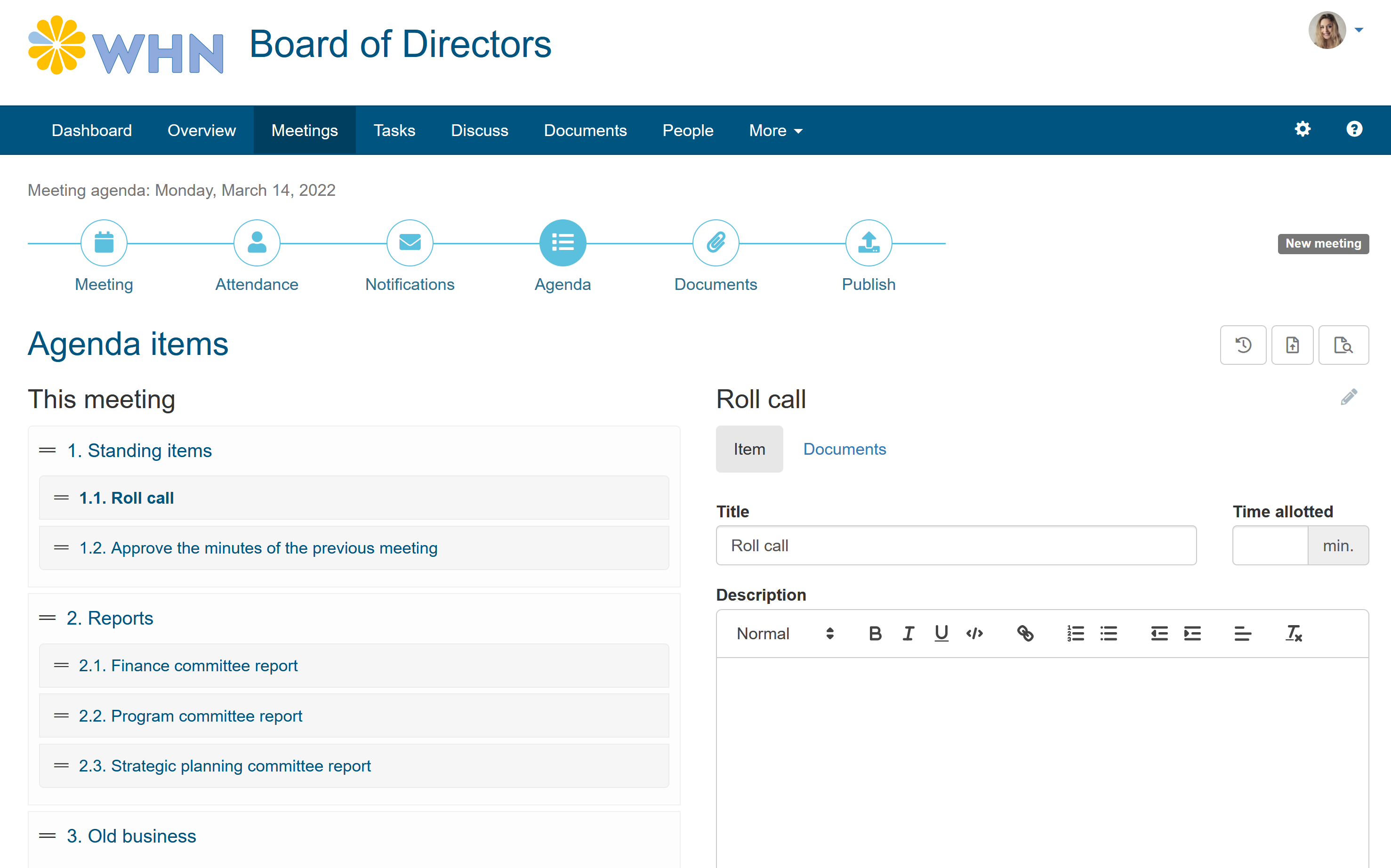
The meetings page shows a list of your recent and upcoming meetings. Use this page you to view the new meeting agenda or browse old meeting minutes.
Tasks
Tasks are usually automatically created from action items added to the meeting minutes. By default, the tasks page shows a list of all committee or group tasks. You can view all committee tasks but only update the ones that are assigned to you. You can also create and maintain your own personal tasks list. (Other members will not see your personal tasks)
Discuss
You will find several convenient communication tools under this tab.
- Messages:
Messages are the easiest way to communicate with other members. You can send a message to one or more members and all replies are always kept together. The message section has several tabs: inbox, drafts, sent messages, deleted messages
- inbox: Messages you received from other members
- drafts: Your saved messages (not sent yet)
- sent messages: Messages you sent to other members
- deleted messages: Messages you deleted from your inbox
- Comments:
You can attach comments to a meeting or even an individual agenda item. This is handy when you review an agenda or meeting minutes and you notice something is missing or incorrect. All members can view and reply to these comments. On this page you can view all comment threads regardless of their attachment.
- Notes:
The same way you can attach comments to meetings, agendas or minutes you can also attach personal notes. The only difference is that notes are for personal use only and you are the only one that can view and/or edit them. On this page you see them all regardless of their attachment.
Documents
Documents can be uploaded and shared separately or attached to a meeting or individual agenda item but on this page you can view them all regardless of their attachment. Most recent uploaded documents are on top. You can select a category (in the box on the right) to show only those documents. Click on a document title to view or download a document. People In this section you can view detailed information about all committee or group members. For each member there is the membership information (title and functional role in the group or committee) and the business contact information (address, phone, etc.)
Search
You can start a search at the top of any page (meetings, tasks, messages, etc) but here is where the results are displayed and you where you will find more options to tell MyCommittee what to search for and where exactly to search.
Tools
In this section you will find a number of tools that are available to all members:
- Quick Poll:
Everyone can create a quick poll for other members. A quick poll allows you to get quick feedback or votes from all committee or group members
- Resolutions:
View a list of all carried resolutions with a link to the original minutes.
- Meeting Statistics:
Checkout how your group is doing on meetings (attendance, start/end times, etc.)
- MyCommittee for Blackberry Smartphone:
Take MyCommittee with you wherever you go. View meeting agendas, minutes, etc. on your BlackBerry. A free download for all registered users
Email Notifications
MyCommittee sometimes sends you a notification email depending on certain events in your committee and your personal preferences. You can control the frequency of some of these notifications or even prevent them from being sent.
Notification emails you can control (go to ‘my profile’ to change preferences)
- A new message arrived in your inbox
- A new comment was posted by another member
Notification emails you cannot control: (Initiated by chair or admin)
- New meeting notification
- New meeting minutes notification
- New Quick Poll notification
Note: Make sure to add ‘messages@mycommittee.com’ to your contacts or safe list. This will ensure delivery of the notification emails to your inbox.